Business Clicker App License Assignment Process and Automated Member Invites
Richard Scully • 19 December 2025
Assigning a license to your members for their Business Clicker App is straightforward. If you find yourself short on licenses, please inform us or place your order here: https://www.bringinglocalback.com/order.
Step One:
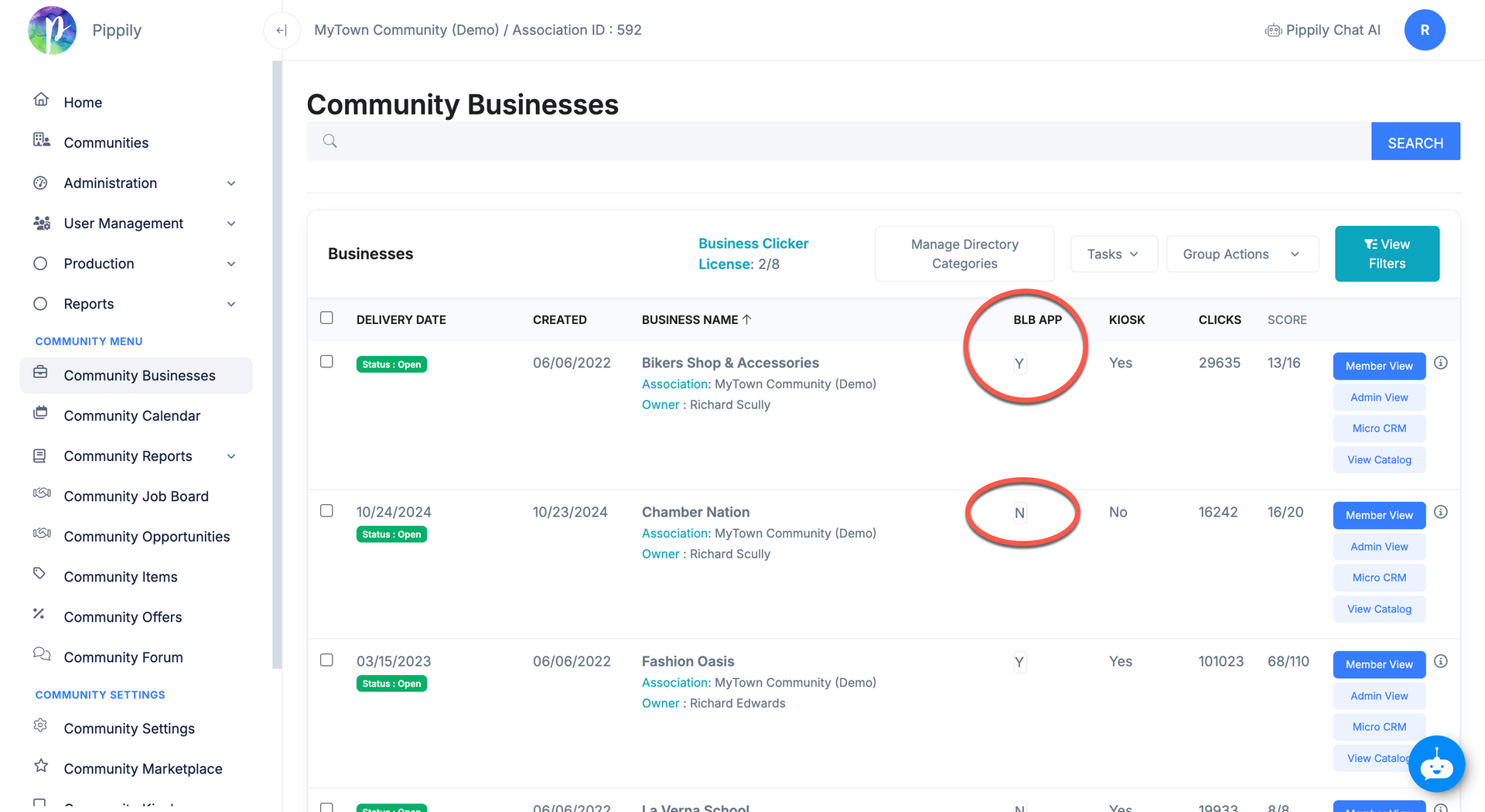
Access your marketplace system and search for the business you wish to assign a license to. Should you require access to your Docu.Team/Pippily system, please submit a ticket to request access. We're here to assist you!
Step Two:
Look up the member business you would like to assign a license to by simply changing the "N" to a "Y" in the column called BLB APP (or BC APP Once We Change It).
Step Three:
A notification like this will be automatically sent to your member once you assign them a Business Clicker license. This notification service is expected to go live on December 22, 2025.
Welcome to Business Clicker!
Your organization's license has been successfully assigned. To start using the app:
Download the App:
- [Apple App Store Link] Business Clicker App - App Store
- [Google Play Store Link] Business Clicker - Apps on Google Play
Log In: Use your current username and password to access the app.
Tip: Your email address is typically your username.
Forgot Password? Use the "Lost Password" function on the login screen.
For more information about this program and to access our dedicated support center, please visit www.HelpingEveryBusiness.com.
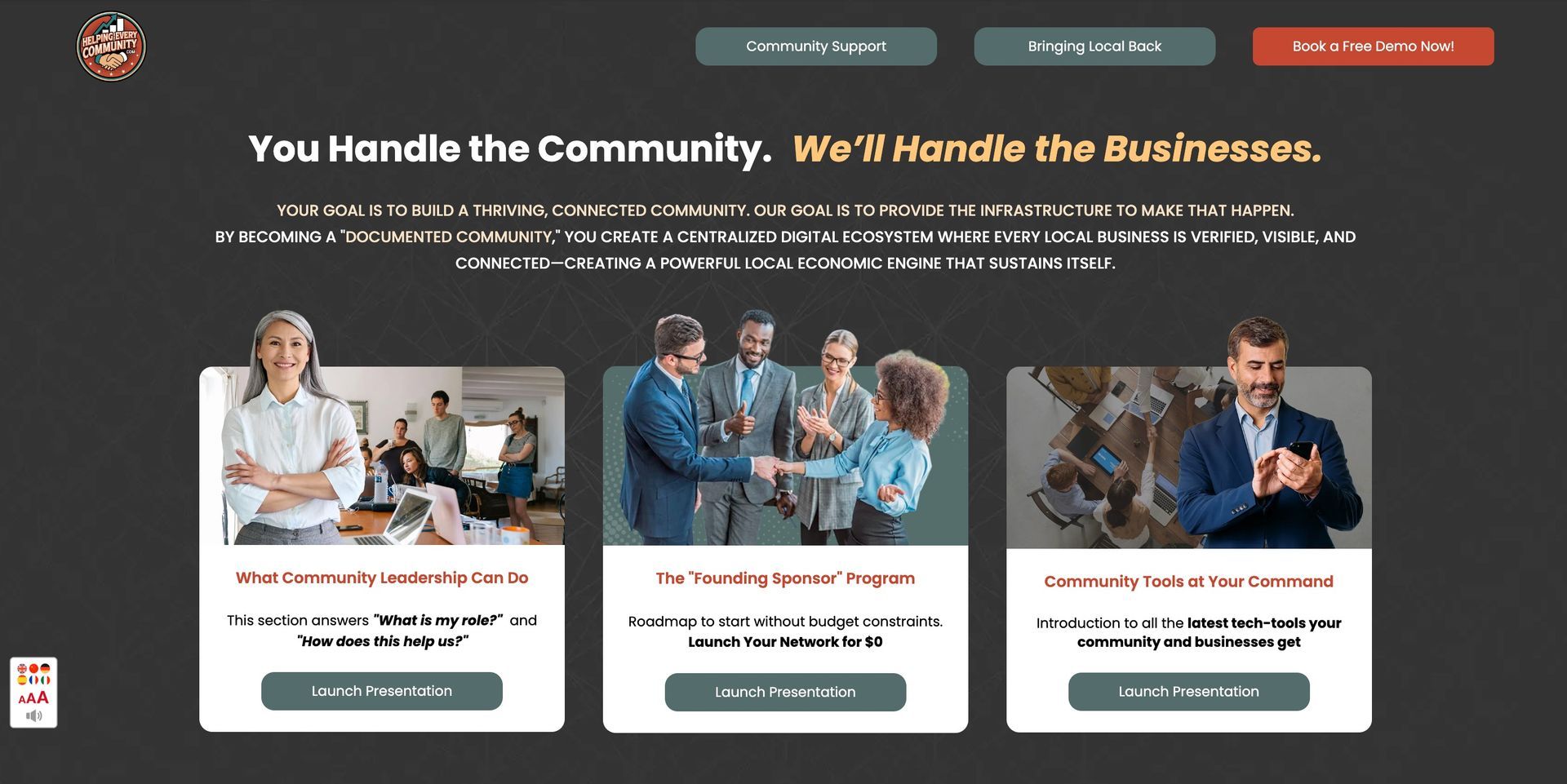
Discover valuable leadership insights here about your community platform!

Check out the new business education and support center:
Discover how Pippily and Yodel Event Calendar are transforming chambers, towns, and
economic development organizations with an all-in-one community publishing system

Dramatically Expand Your Potential Member Funnel and Non-Dues Income
YAY! CNAME SUPPORT! We Now Offer Private Branded Community Commerce URL'S

Introducing an exciting new tool that transforms how businesses capture their information for search—experience mind-blowing automation in just 15-30 seconds!
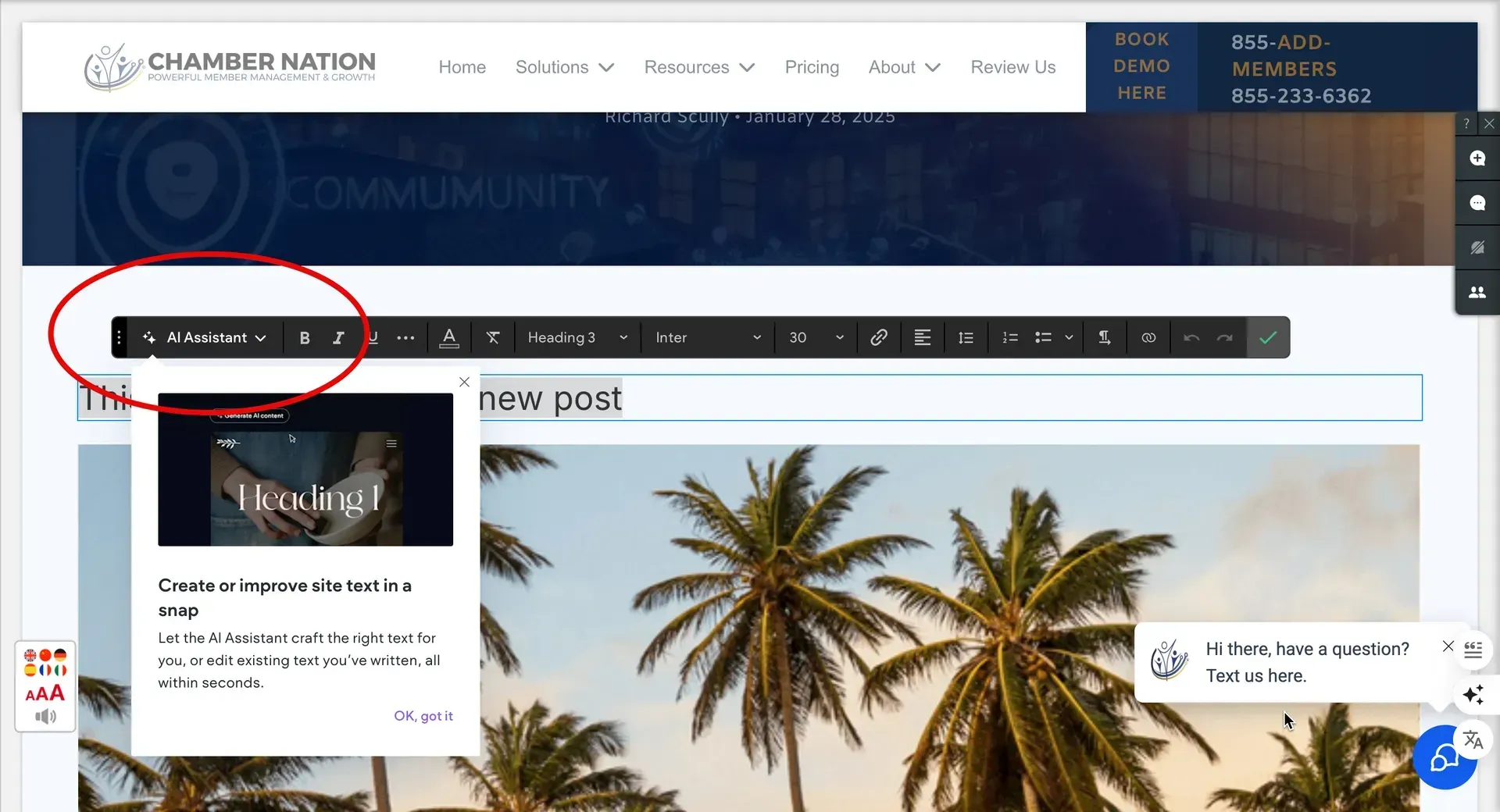
Interested in Automating the Creation of Blog Posts and Website Pages?
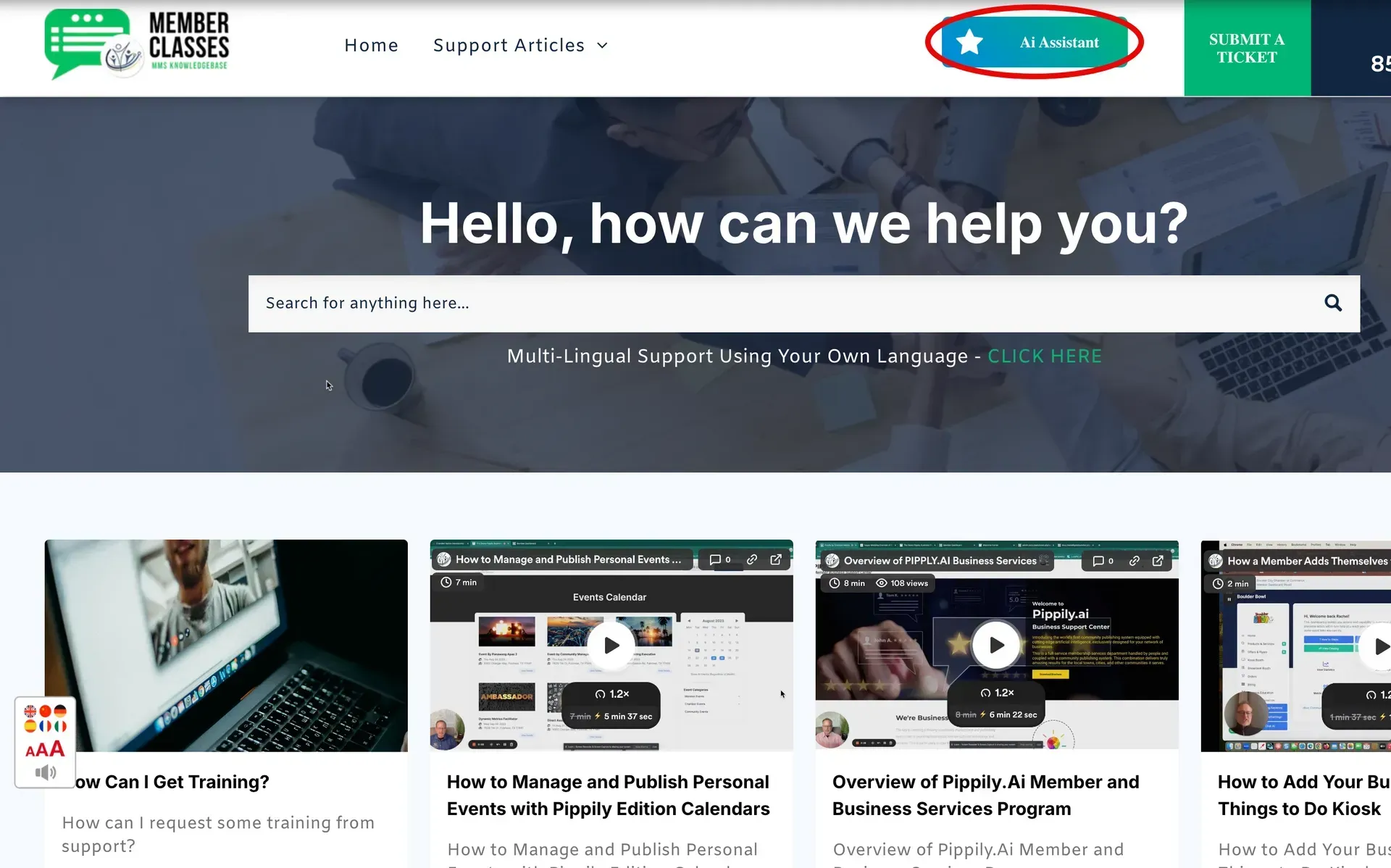
To serve your members better we have implemented an all new MULTILINGUAL Ai Assisted member support center.
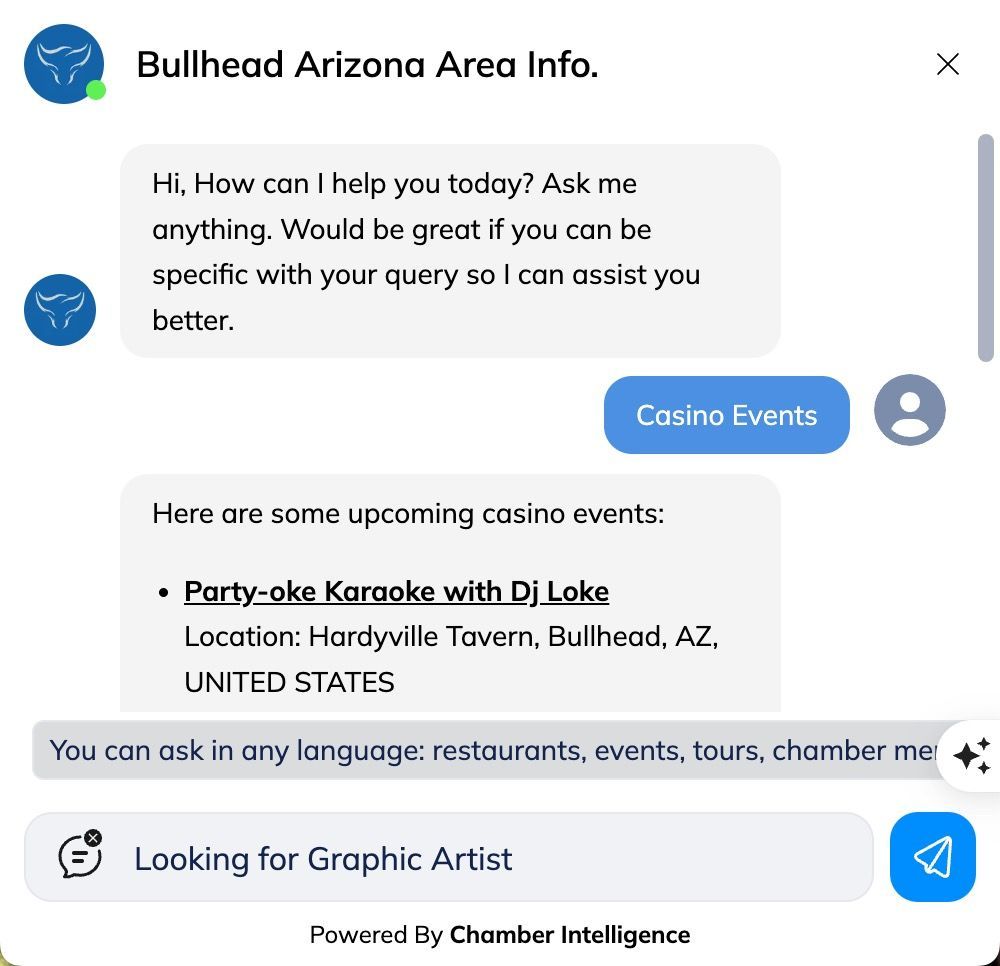
Chamber Intelligence Introduces New Service to Expand Chamber Success

We Have a Christmas Card and Message for You!